
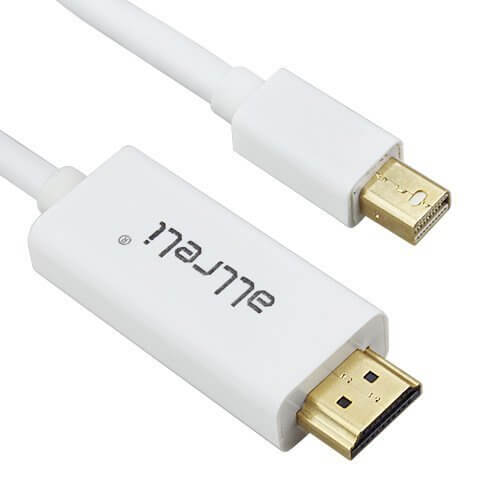
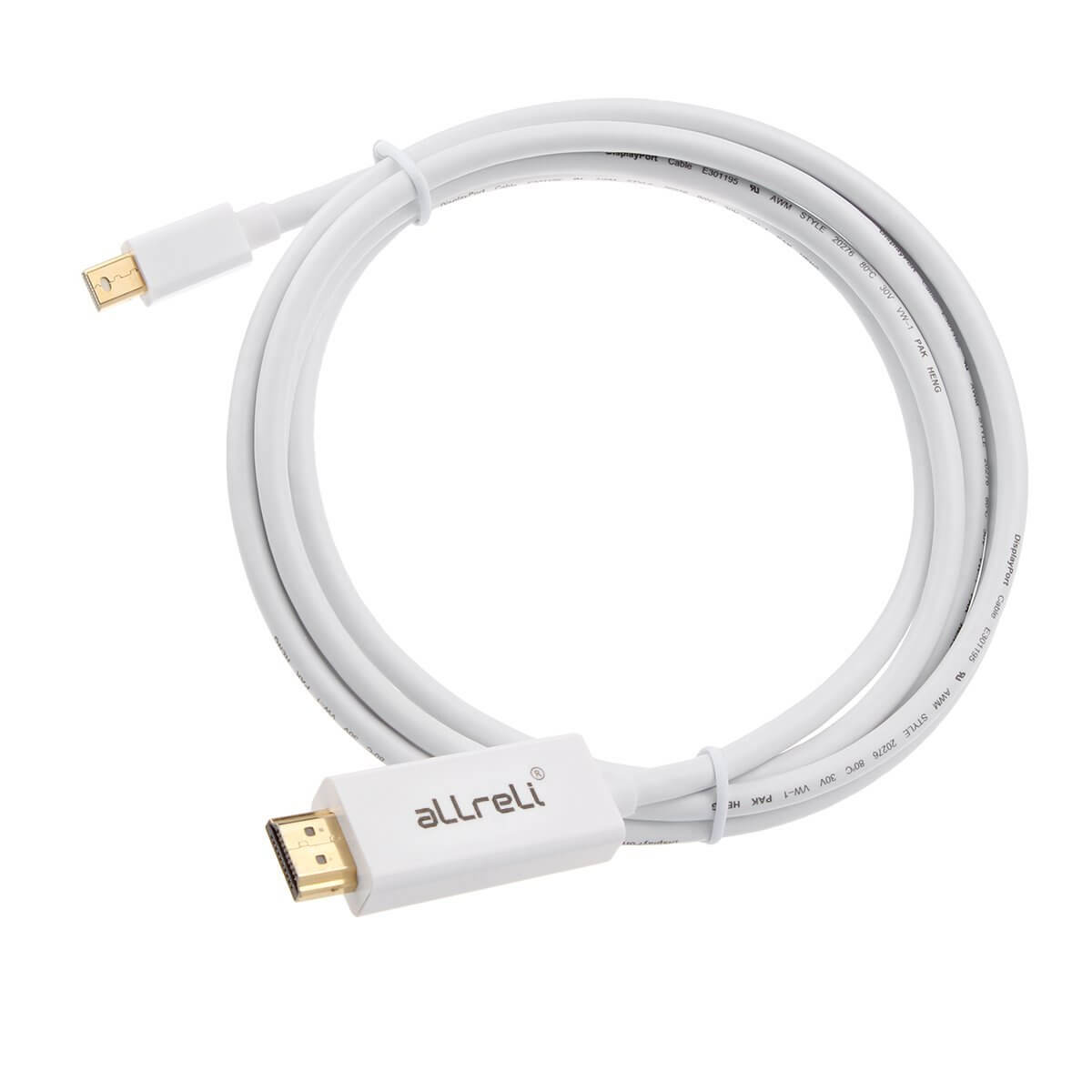
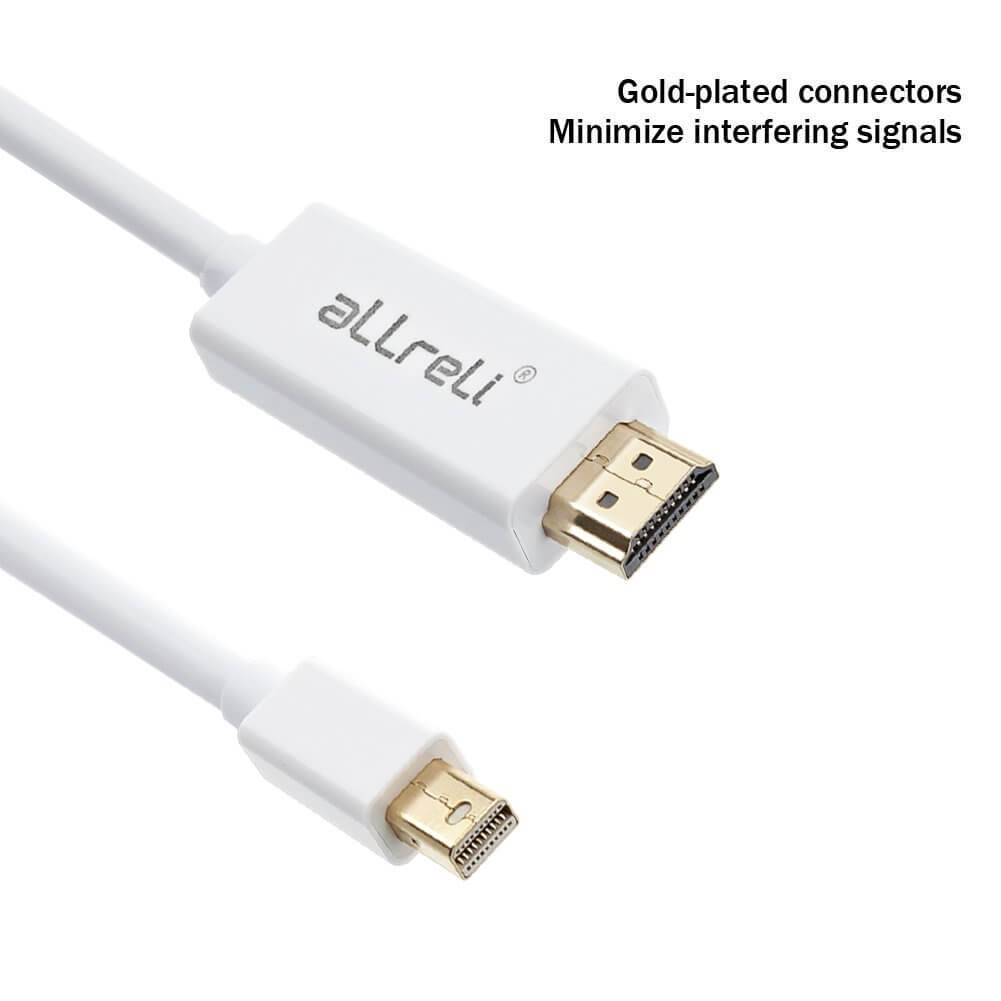
Mini Display Port DP to HDMI Cable Adapter
Key Features:
• Premium chip
• 24k Gold-plated connectors
• 24 AWG oxygen-free copper
• Multi-shielded cable
• ABS Shell
• aLLreli Promise
• Supports full 1080p HD digital video
• Supports HDMI Deep Color 12bit per channel (36bit color depth)
• Supports HDMI 225MHz/2.25 Gbps per channel (6.75Gbps all channel) bandwidth
• Supports uncompressed digital LPCM 7.1, 5.1 or 2 channels and compressed digital Bit-Stream
• Connector: Gold plated Mini DisplayPort/Thunderbolt male & HDMI male
• Package contents: 1x 1.8M MINI DP TO HDMI for macbook
• HDCP compliant
Please drag the window on the desktop all the way over to the display edge and the window will be displayed on the HDTV. You may set HDTV to a mirror display.
1.With your TV connected to Mac, open System Preference
2.Select Display
3.Select Arrangement tag
4.Check Mirror Display
Transmitting audio to TV
1.Open System Preference
2.Select Sound
3.Select Output tag
4.Choose external HDMI instead of built-in speaker
Key Features:
• Premium chip
• 24k Gold-plated connectors
• 24 AWG oxygen-free copper
• Multi-shielded cable
• ABS Shell
• aLLreli Promise
• Supports full 1080p HD digital video
• Supports HDMI Deep Color 12bit per channel (36bit color depth)
• Supports HDMI 225MHz/2.25 Gbps per channel (6.75Gbps all channel) bandwidth
• Supports uncompressed digital LPCM 7.1, 5.1 or 2 channels and compressed digital Bit-Stream
• Connector: Gold plated Mini DisplayPort/Thunderbolt male & HDMI male
• Package contents: 1x 1.8M MINI DP TO HDMI for macbook
• HDCP compliant
Please drag the window on the desktop all the way over to the display edge and the window will be displayed on the HDTV. You may set HDTV to a mirror display.
1.With your TV connected to Mac, open System Preference
2.Select Display
3.Select Arrangement tag
4.Check Mirror Display
Transmitting audio to TV
1.Open System Preference
2.Select Sound
3.Select Output tag
4.Choose external HDMI instead of built-in speaker
No reviews yet.
After you submit the form, a confirmation message with your reference number will appear on this page. Please keep it for your records.
- ✔ Reply within 24 hours
- ✔ Order, warranty, and return support
- ✔ Product setup and compatibility help
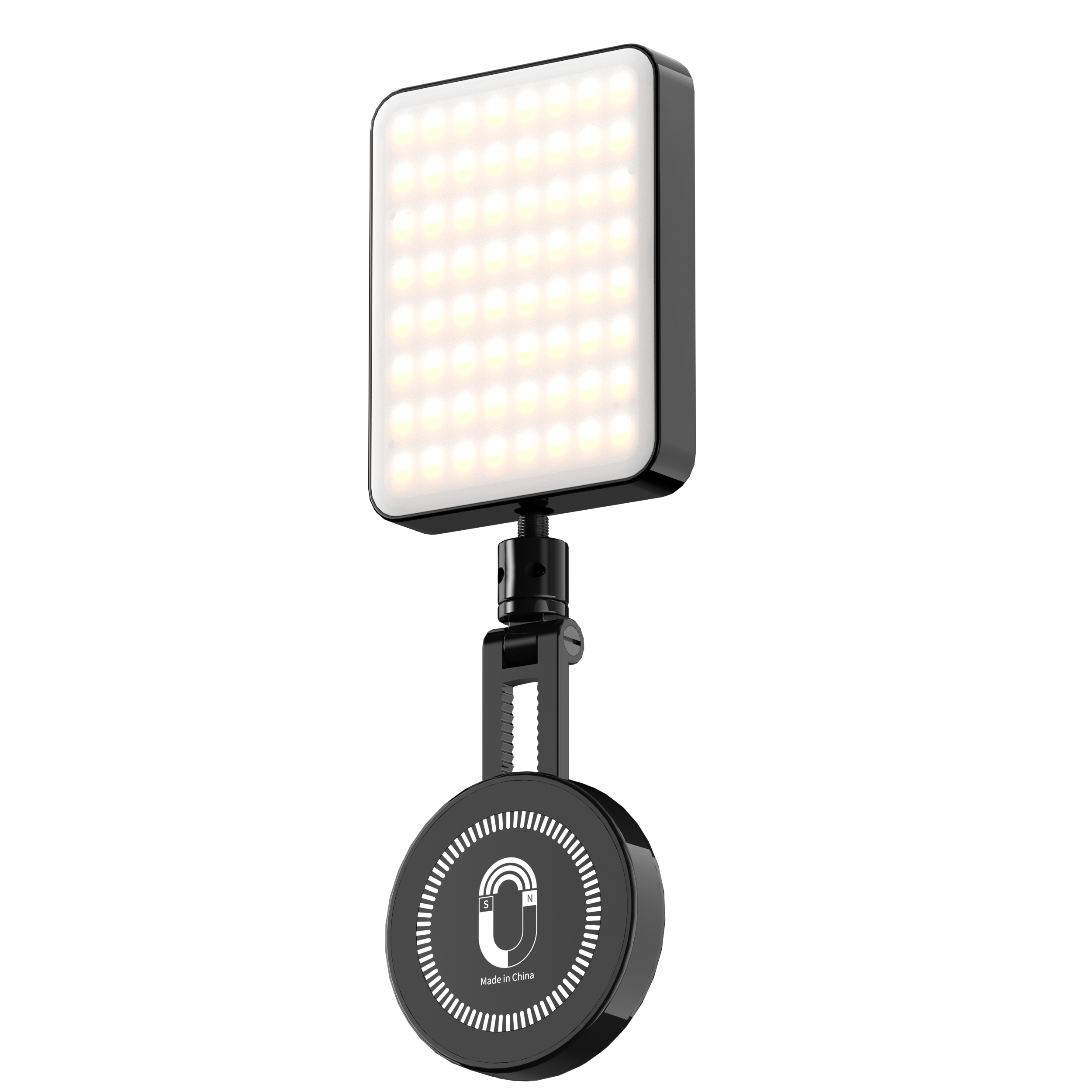

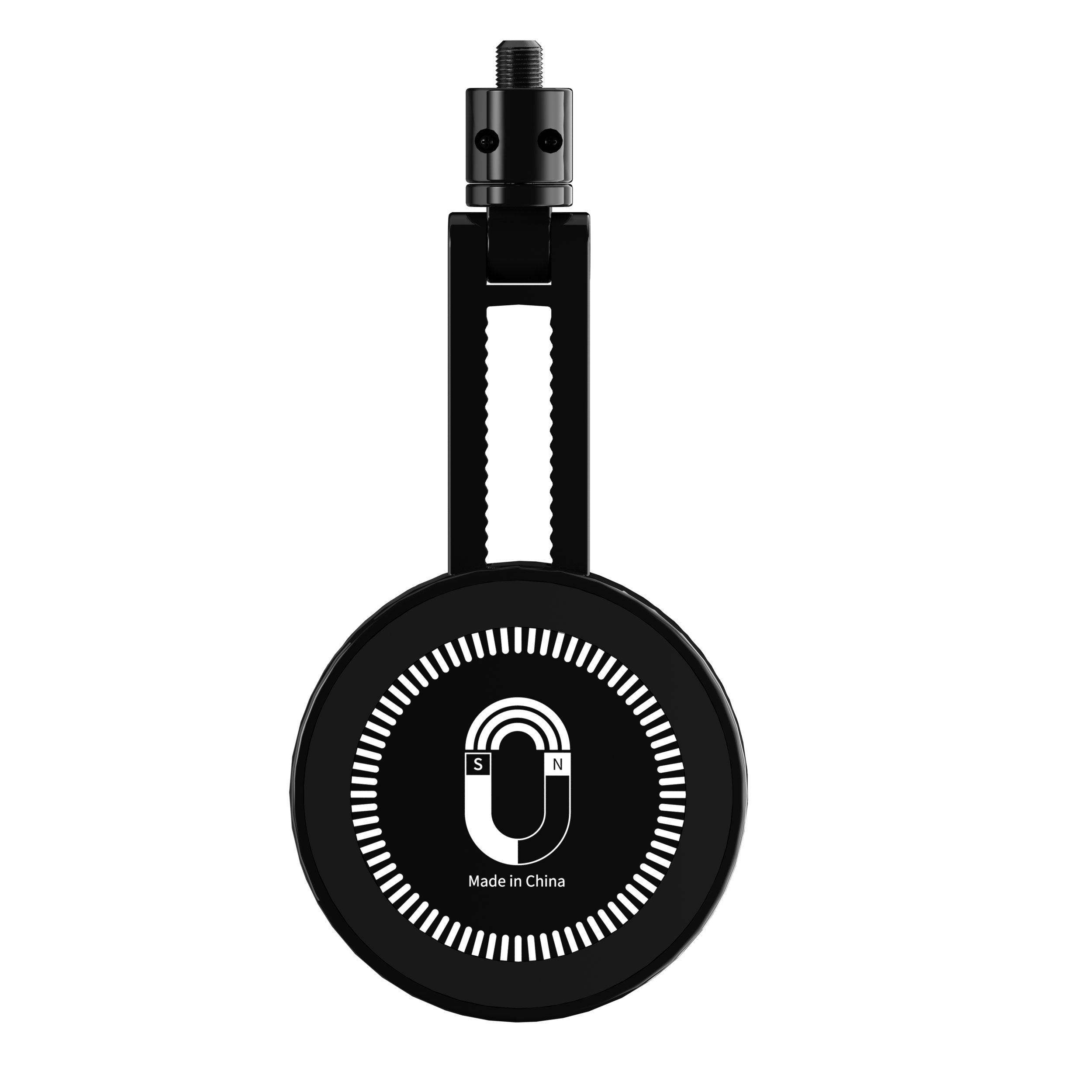
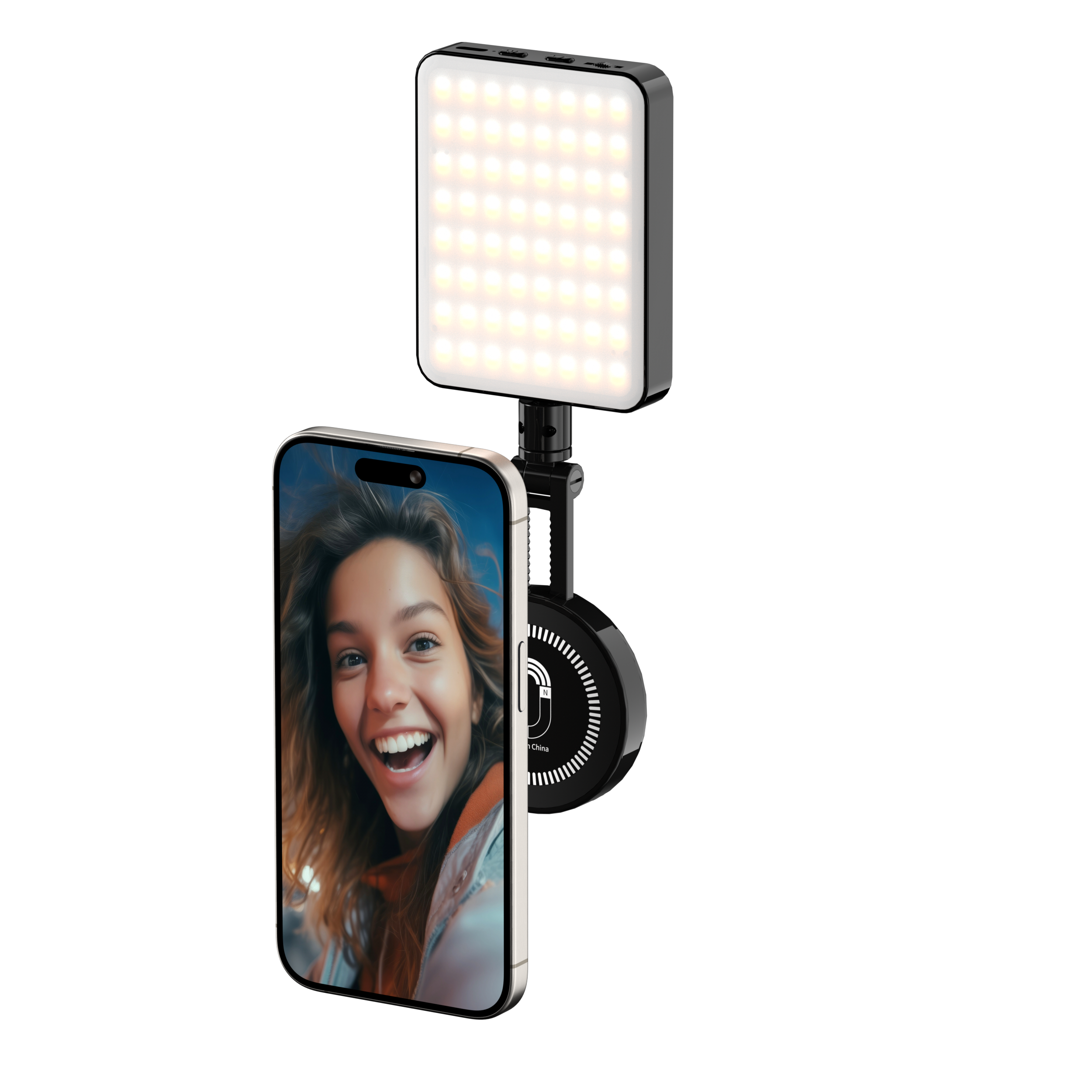
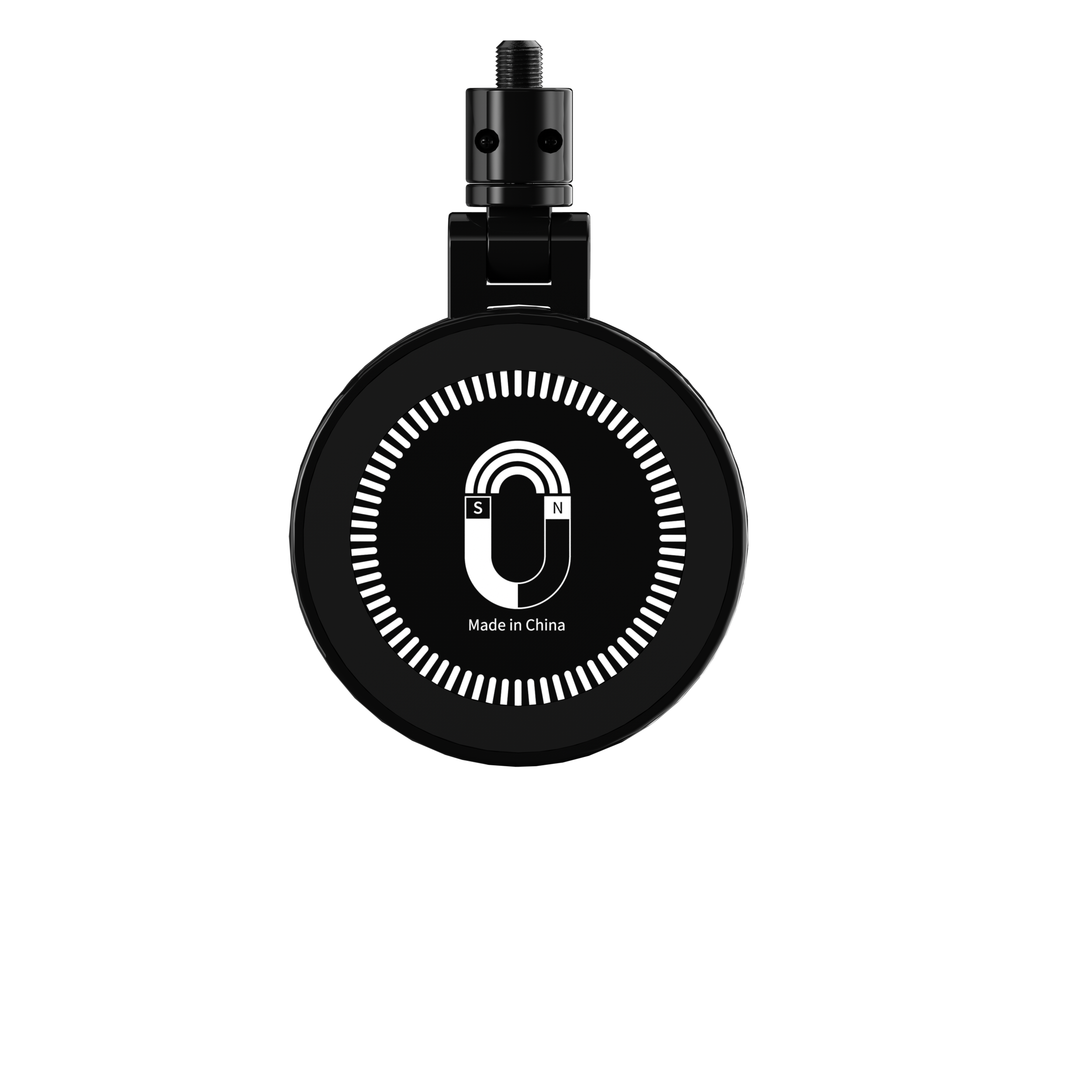
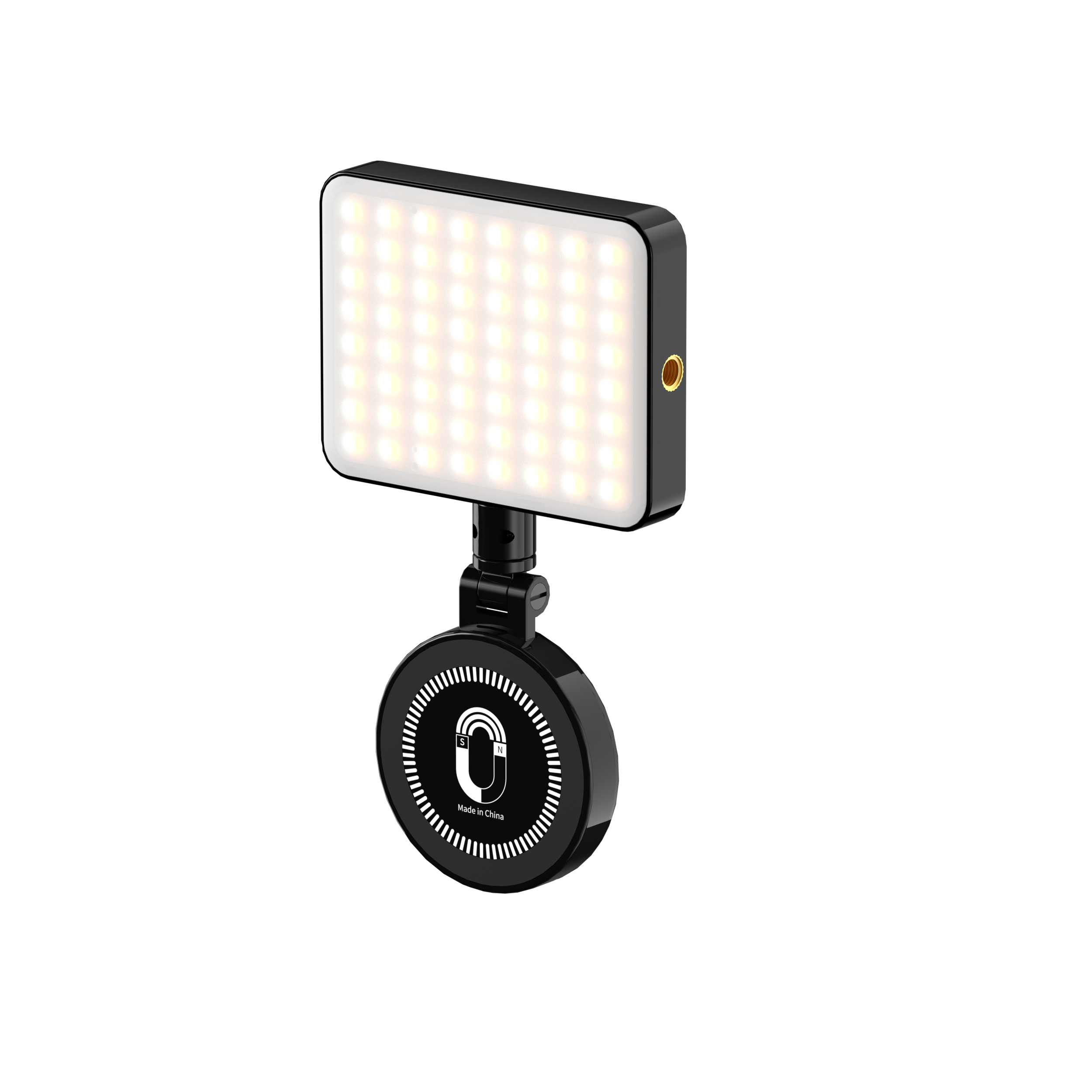
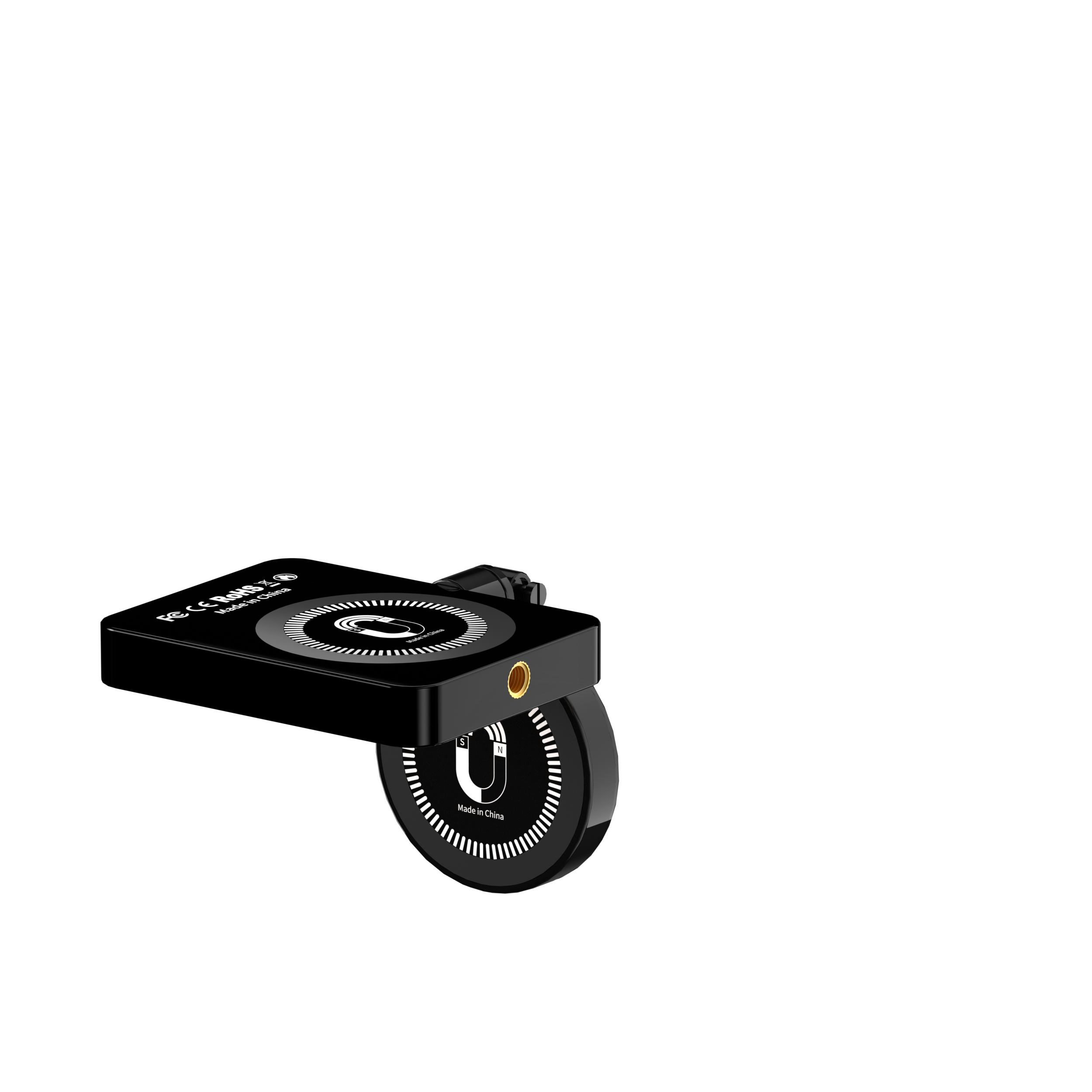
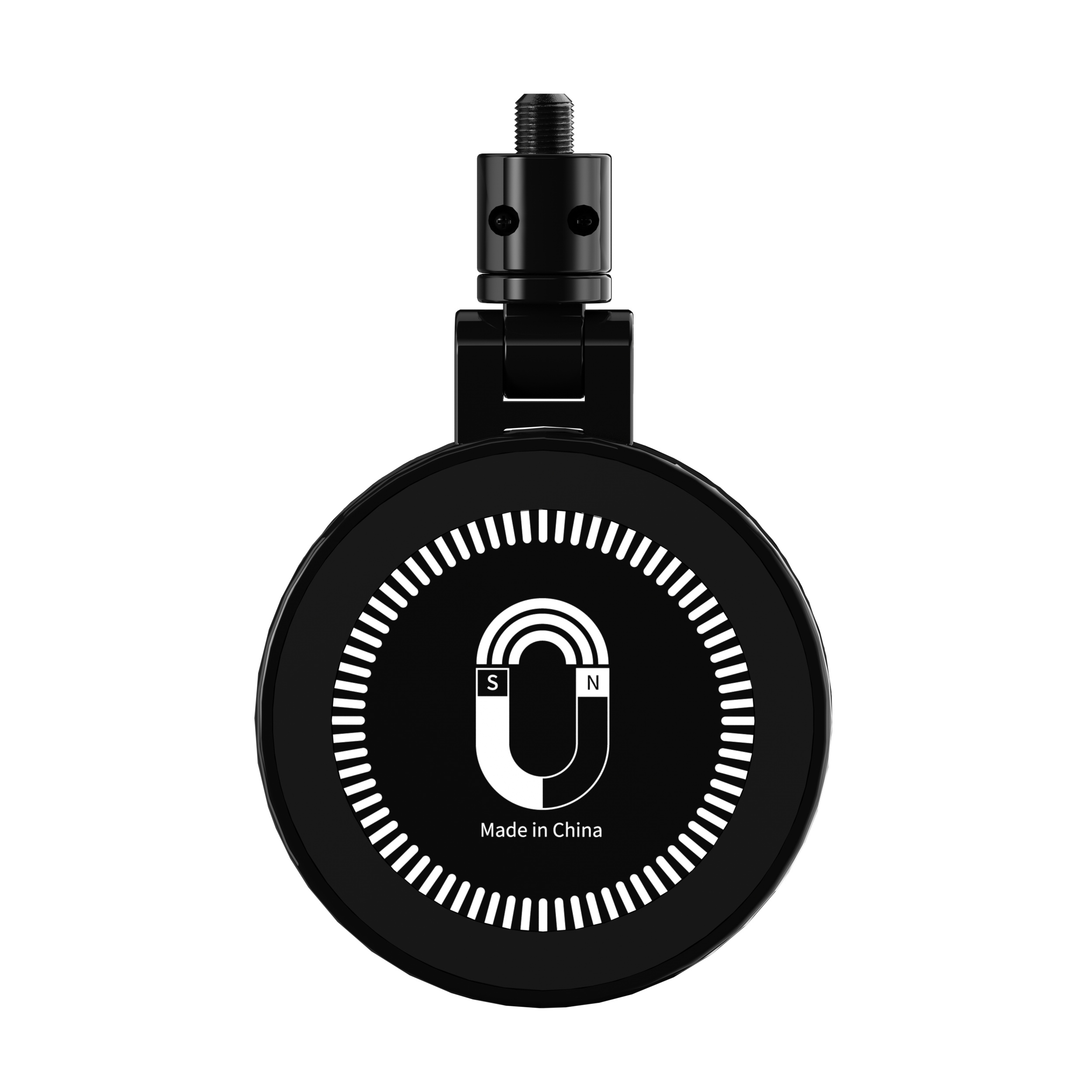
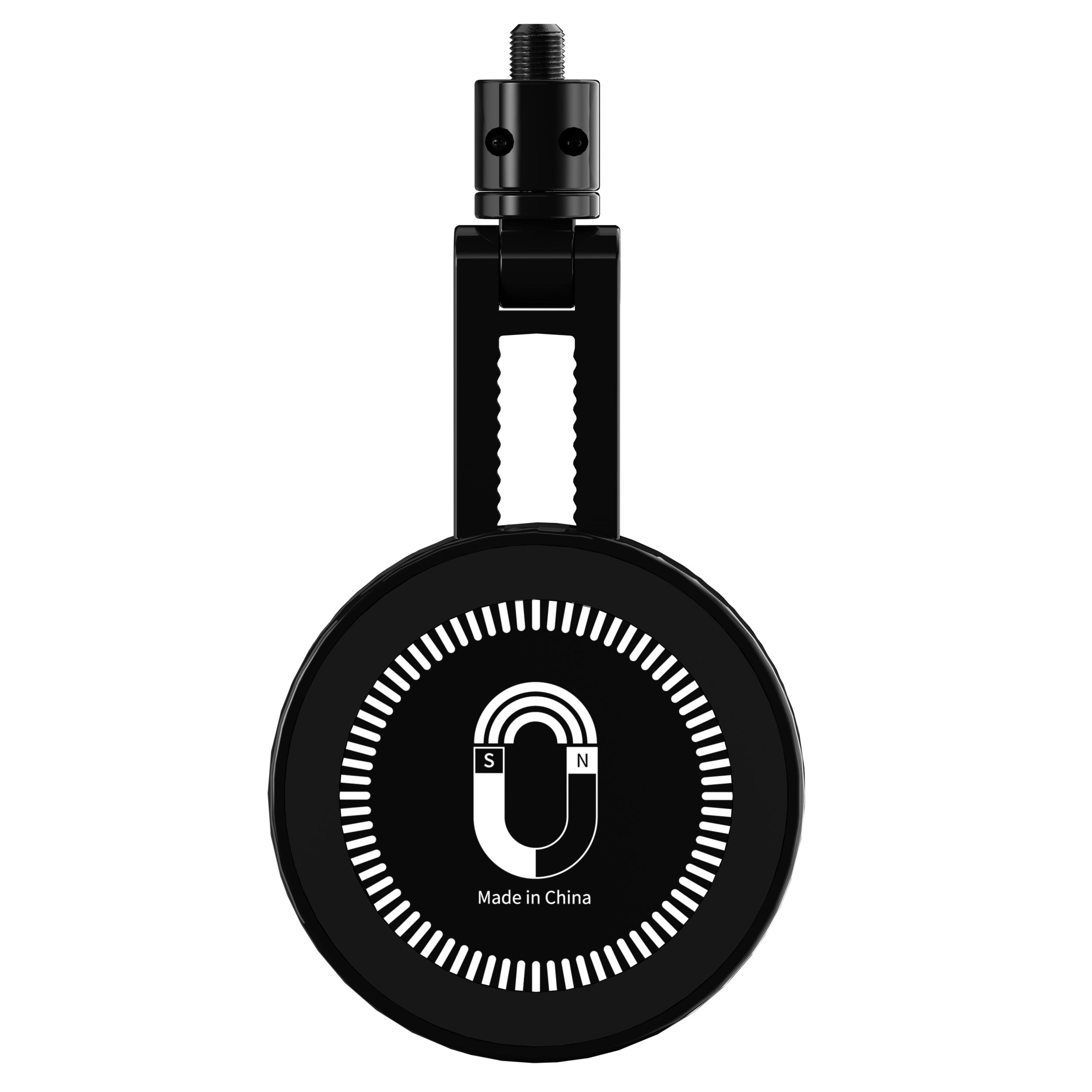
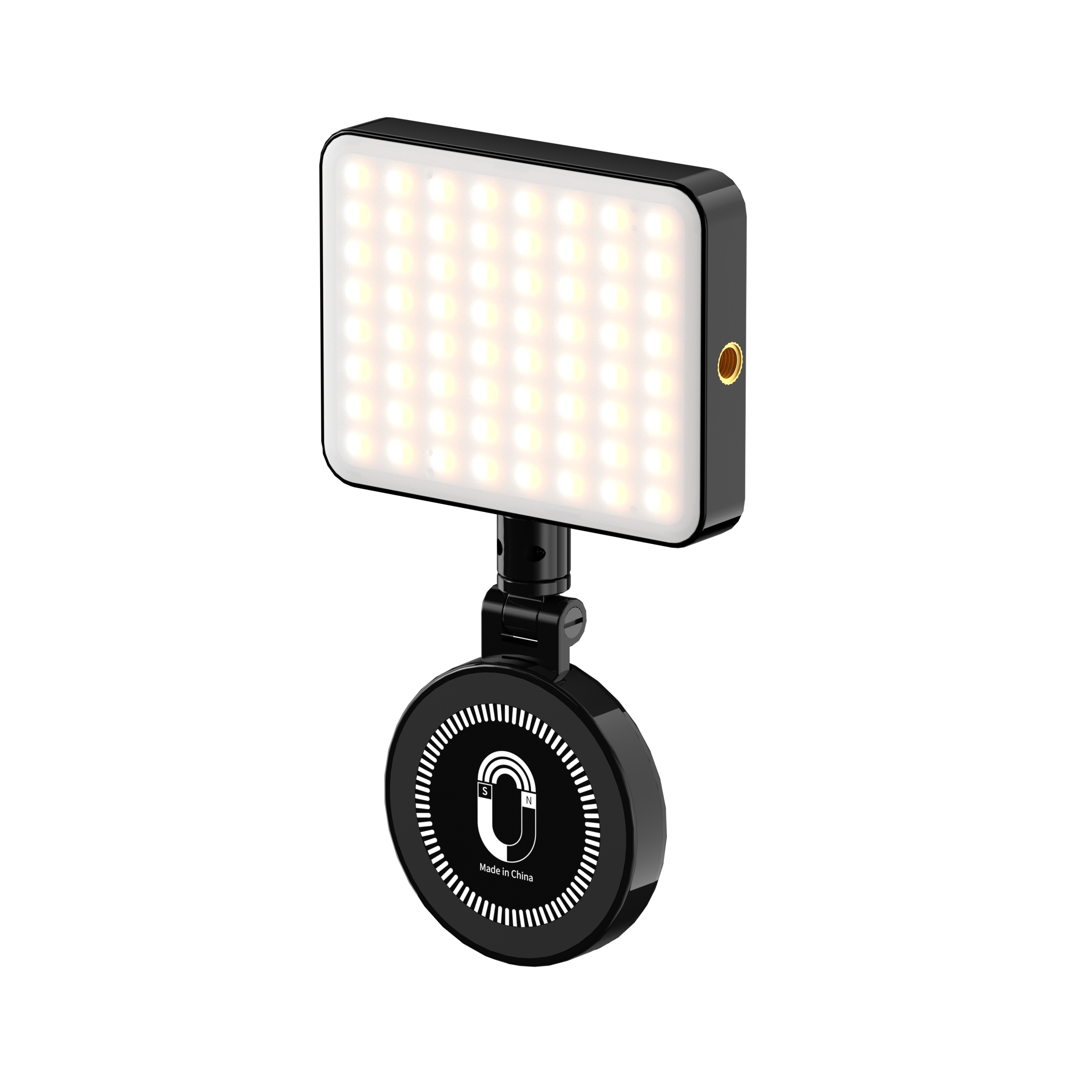
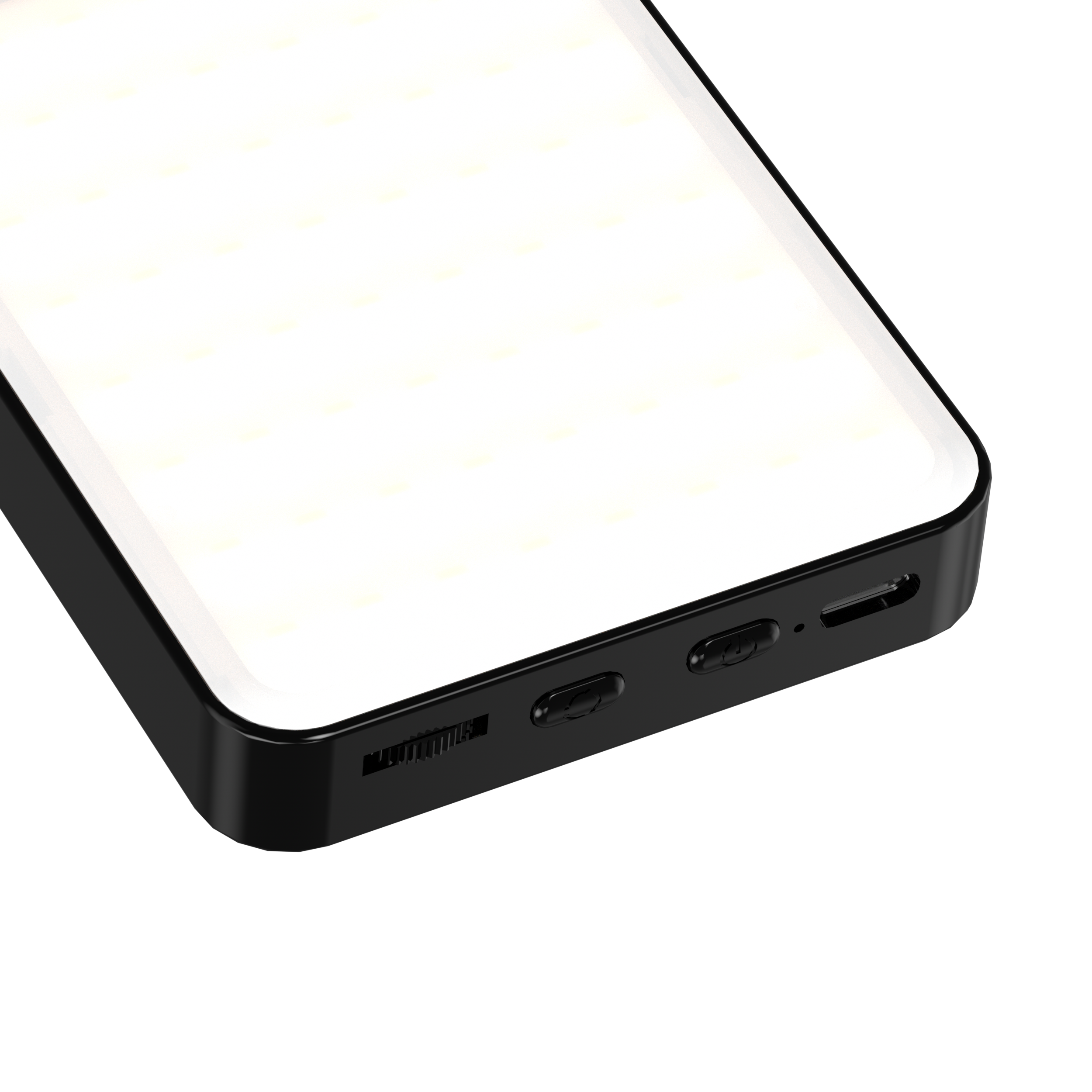
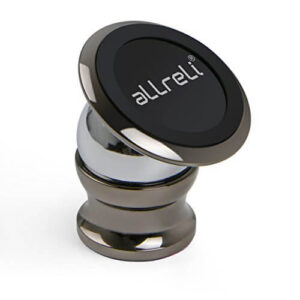
![aLLreLi [Upgraded] Magnetic Car Cell Phone Mount](https://cdn.allreli.com/2026/08/aLLreLi-Upgraded-Magnetic-Car-Cell-Phone-Mount4.jpg "aLLreLi [Upgraded] Magnetic Car Cell Phone Mount4")
![aLLreLi [Upgraded] Magnetic Car Cell Phone Mount](https://cdn.allreli.com/2026/08/aLLreLi-Upgraded-Magnetic-Car-Cell-Phone-Mount3.jpg "aLLreLi [Upgraded] Magnetic Car Cell Phone Mount3")
![aLLreLi [Upgraded] Magnetic Car Cell Phone Mount](https://cdn.allreli.com/2026/08/aLLreLi-Upgraded-Magnetic-Car-Cell-Phone-Mount2.jpg "aLLreLi [Upgraded] Magnetic Car Cell Phone Mount2")
![aLLreLi [Upgraded] Magnetic Car Cell Phone Mount](https://cdn.allreli.com/2026/08/aLLreLi-Upgraded-Magnetic-Car-Cell-Phone-Mount.jpg "aLLreLi [Upgraded] Magnetic Car Cell Phone Mount")
![[Discontinued] aLLreLi 8200 DPI High Precision Laser Gaming Mouse (M811Lu)](https://cdn.allreli.com/2026/08/71KoEq8T2DL._SL1500-300x300.jpg "71KoEq8T2DL._SL1500")